.PNG)
UGC/VEO/SORA
Here, you can generate UGC with VEO or SORA AI models.
Veo is Google’s AI video generation model that creates high-quality videos from text prompts.
Sora is OpenAI’s text-to-video AI model that generates realistic videos from text descriptions.
- Go to the Home page
- Click Apps

- Click and choose UGC Persona

- Select Start from Scratch

- Click UGC/VEO/SORA
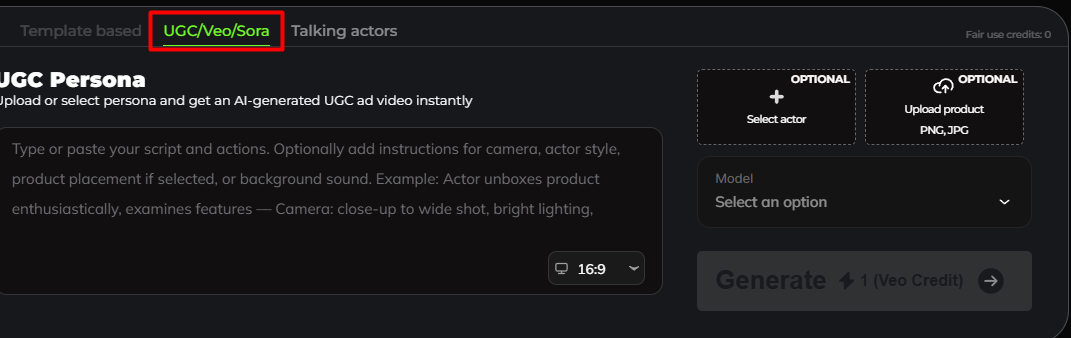
- Upload or select a persona (the on-screen character)
-
Write or paste your script
You can also add:
- Actor behavior (e.g., enthusiastic, casual)
- Camera directions (close-up, wide shot, lighting)
-
Product placement instructions
Background sound notes
Tips: Make sure to clearly specify the gender in your script or instructions, as the model does not allow manual gender selection. If you want a female actor, be explicit in the prompt.
For example:
“An actress with a soft female voice enthusiastically unboxes the product, close-up shot, bright lighting.”
For male:
👉 Example: “Actor with a male stong voices,unboxes product enthusiastically, close-up shot, bright lighting.”
Model Selection
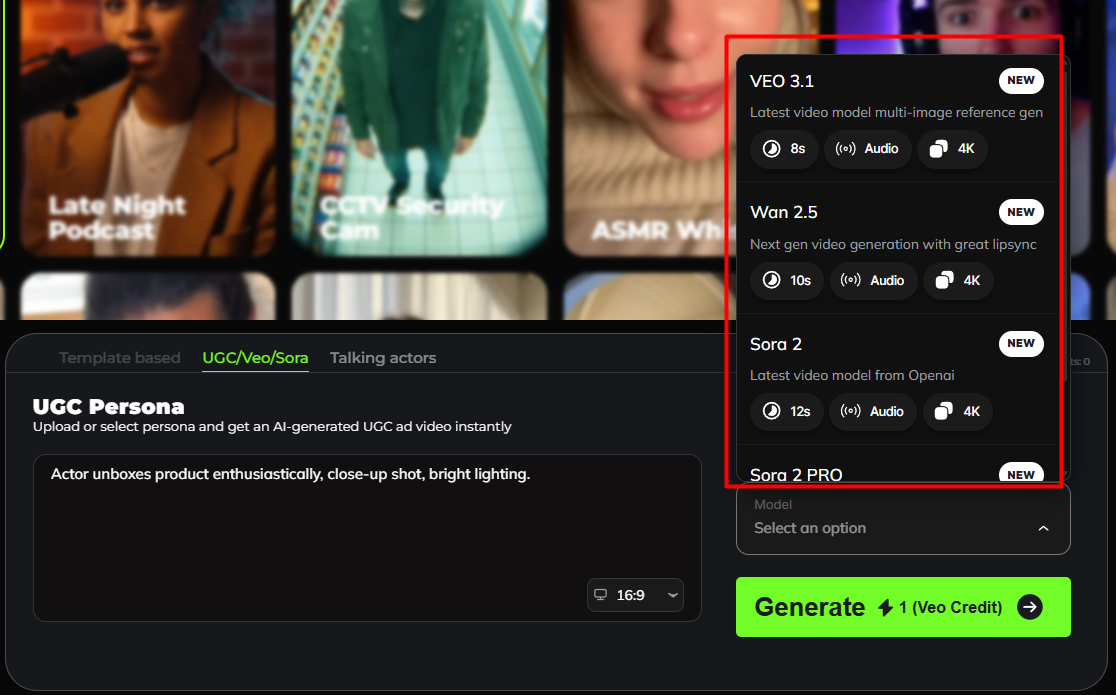
Choose which AI video model to use:
- Veo 3 (Google’s cinematic AI video model)
- WAN 2.5 is a text-to-video and image-to-video AI model designed to generate high-quality, realistic videos from prompts.
- Sora 2 (OpenAI’s realistic text-to-video model)
- Sora 2 Pro refers to a premium or higher-capability tier of Sora 2
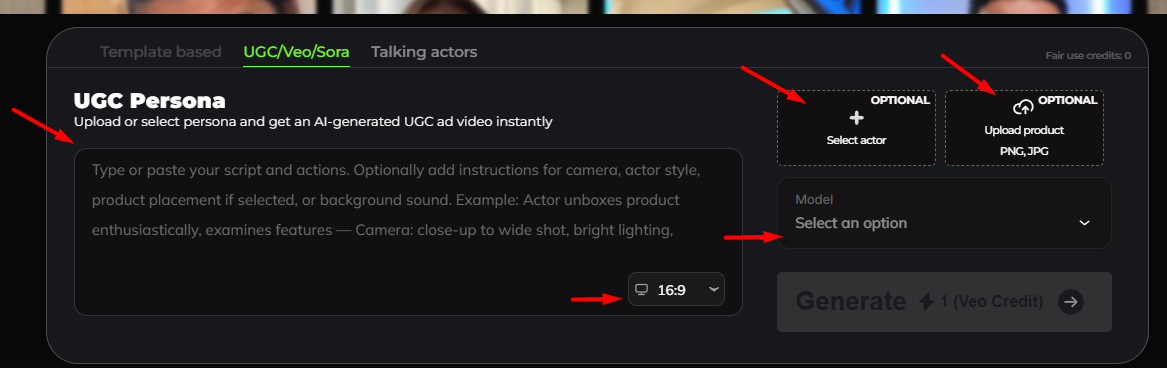
Optional Settings (Right Side)
This depends on the model selected.
- VEO 3.1 allows you to either select an actor or upload a product
- WAN 2.5 allows you to either select an actor or upload a product
- Sora 2 allows you to either select an actor or upload a product
- Sora 2 Pro only allows you to upload a product.
Select Actor (Optional)
- Choose a specific AI actor instead of a default persona
-
When you click Select Actor, you’ll be taken to the Persona Library, where you can select or generate a persona based on your description.
Upload product (Optional)
- Upload a PNG or JPG image of your product
- The AI can include it naturally in the video
Aspect Ratio
- Set video format (e.g. 16:9 or 9:16)
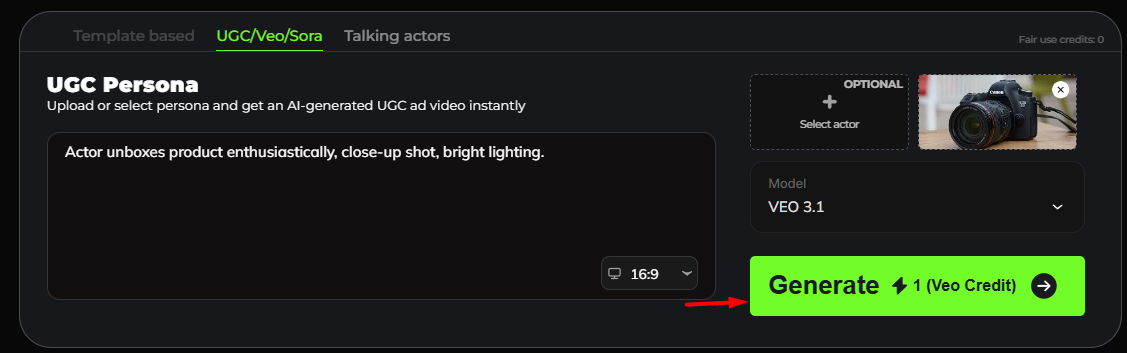
Generate
- Click Generate
Note: When you click Generate, the system will deduct the number of credits shown next to the button.
- Wait for AI processing

Review & Download
After generation:
- The thumbnail will appear once the video has finished rendering.
For example:
- Preview the video
- Click the Download button to download