.PNG)
How to Generate a VSL Using the Scene-by-Scene Method
Here, you can build your VSL manually by adding scenes.
- Choose your Video Style Category
- Select Scenes
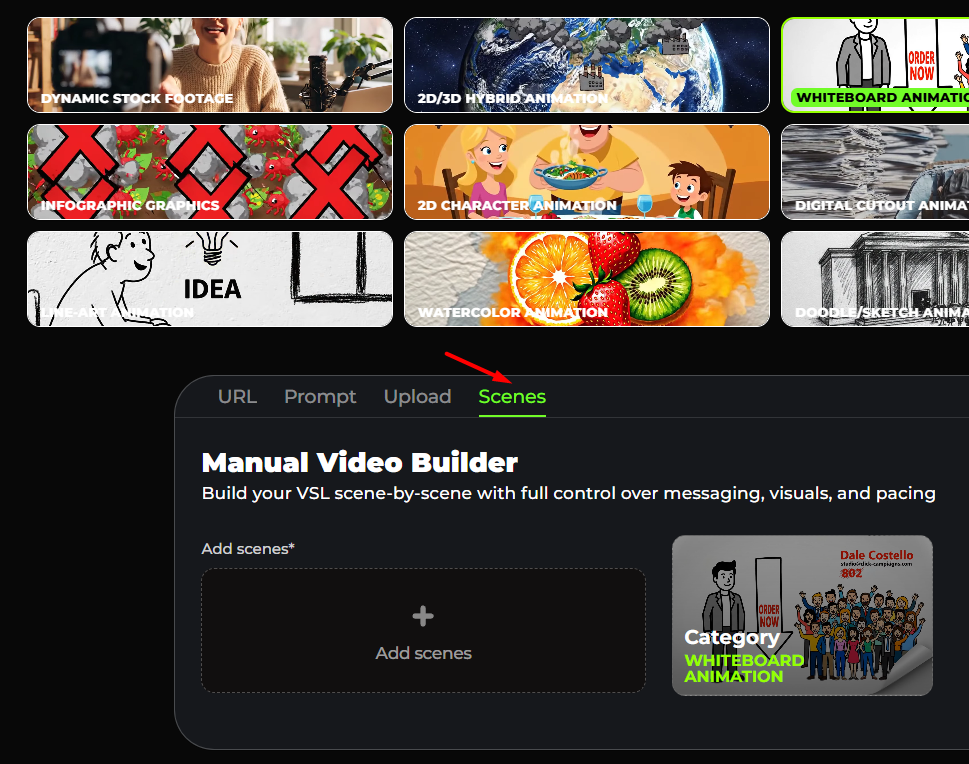
Choosing Scenes means you want to build your video manually, scene by scene.
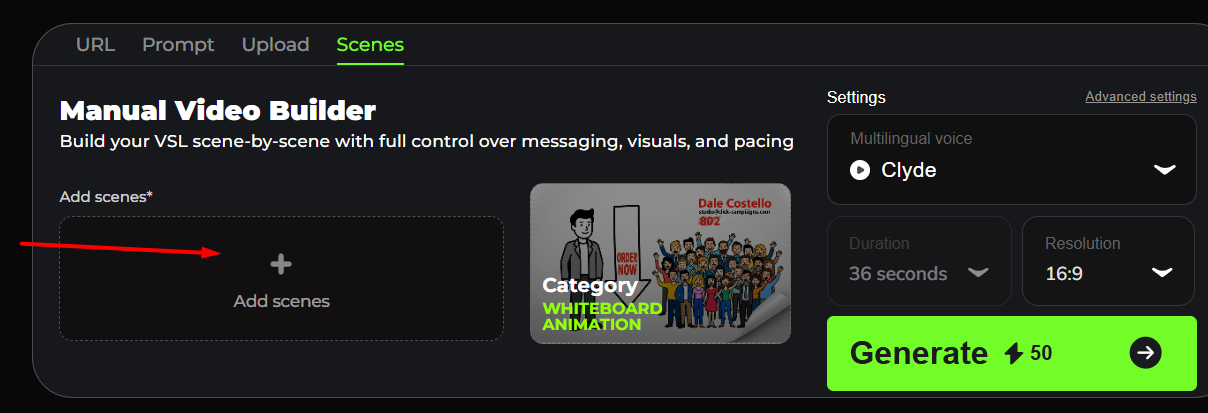
- Click Add Scenes
This area lets you create your VSL by adding individual scenes.
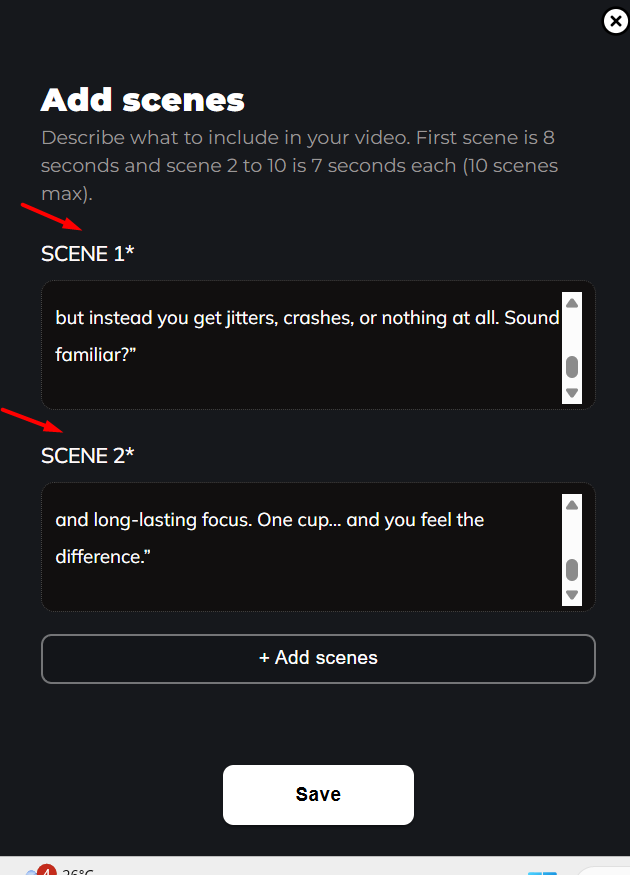
This is the Add Scenes window, where you manually enter the scenes that will appear in your VSL. This tool lets you describe each scene so the AI can generate visuals based on what you write.
- First scene is 8 seconds and scene 2 to 10 is 7 seconds each
- 10 scenes max
- You can keep adding scenes until you reach the limit.
- This is important so you know how long each scene will appear.
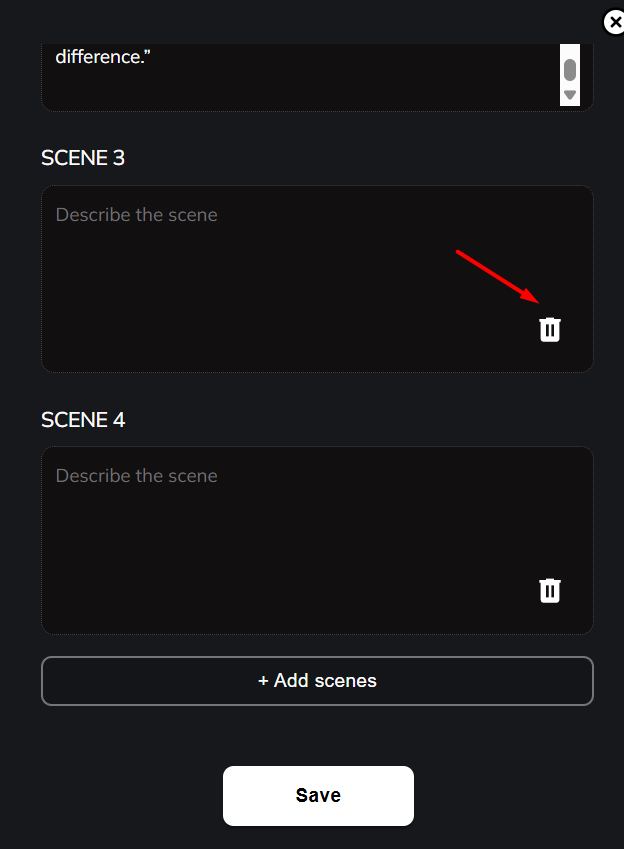
Note: If you want to delete a scene, click Delete button as shown below.
4.Click Save Button
When you're done writing your scene descriptions, click Save to confirm and return to the main builder.
5. Category Preview
The preview box labeled Category shows the selected style again.
This confirms the look and feel of your video.
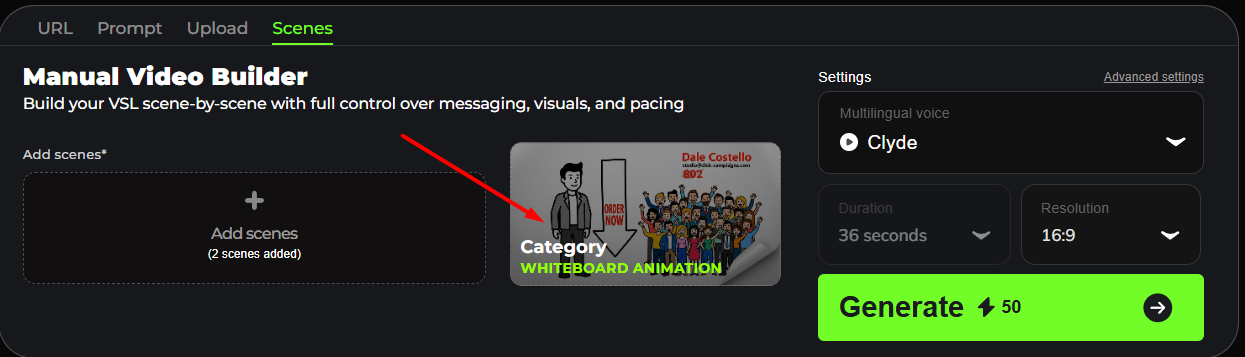
6. Settings
You can customize:
- Multilingual Voice
- Duration
- Resolution
These settings will apply to your final VSL.
7. Generate Button
The big green button “Generate ⚡50” means:
- Clicking it will create your video
-
it costs 50 credits (credits = platform tokens)
After the generation finishes, you can view and download your VSL.