.PNG)
How to Generate a VSL Using Your File Upload
Let the AI analyze your content and turn it into a complete VSL.
Upload your sales material in PDF format, and the system will automatically extract the key points, write the script, and build your video.
1. Choose Your Video Style
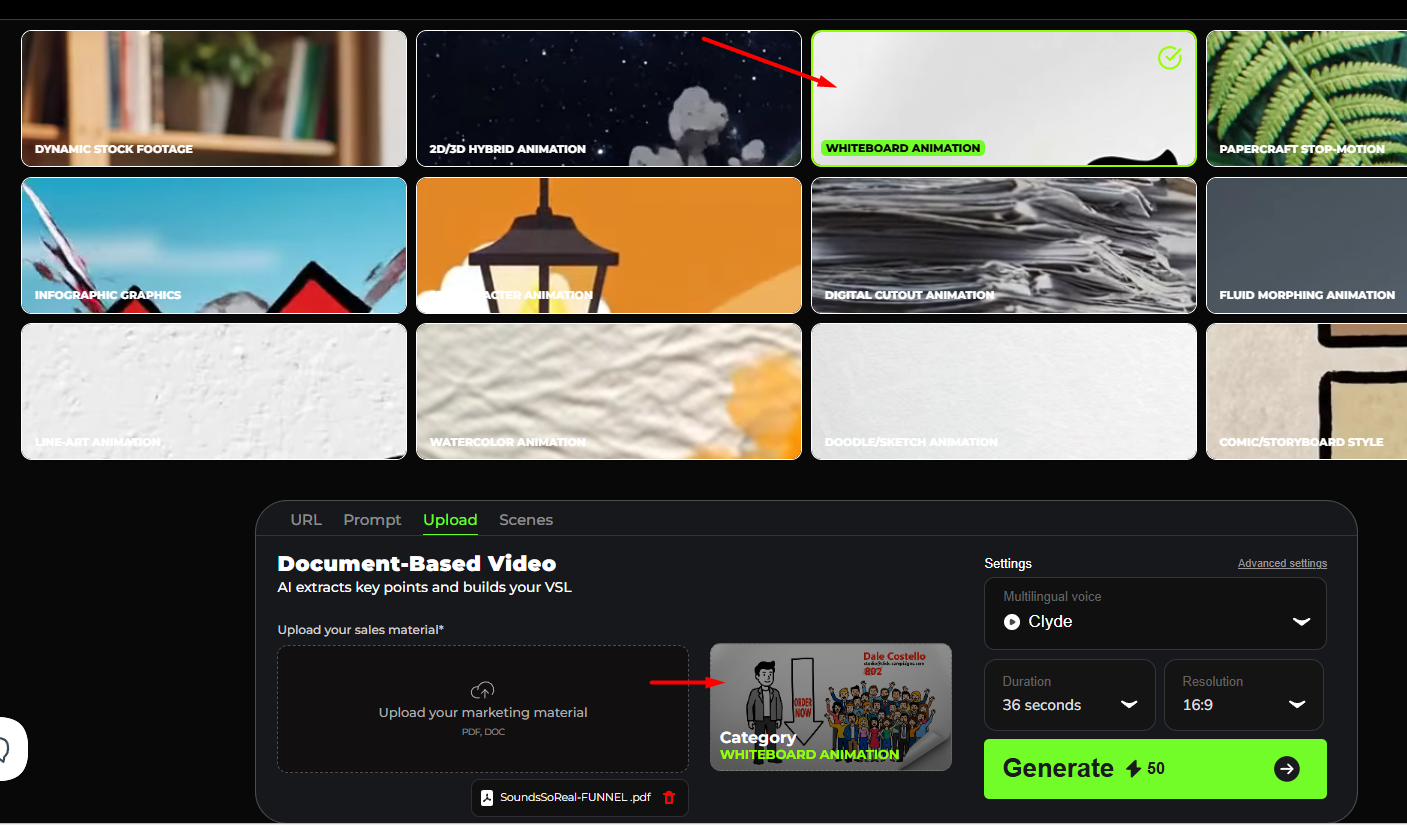
At the top, you select a video animation style for your VSL.
In the image, Whiteboard Animation is highlighted — meaning this is the style the final video will use.
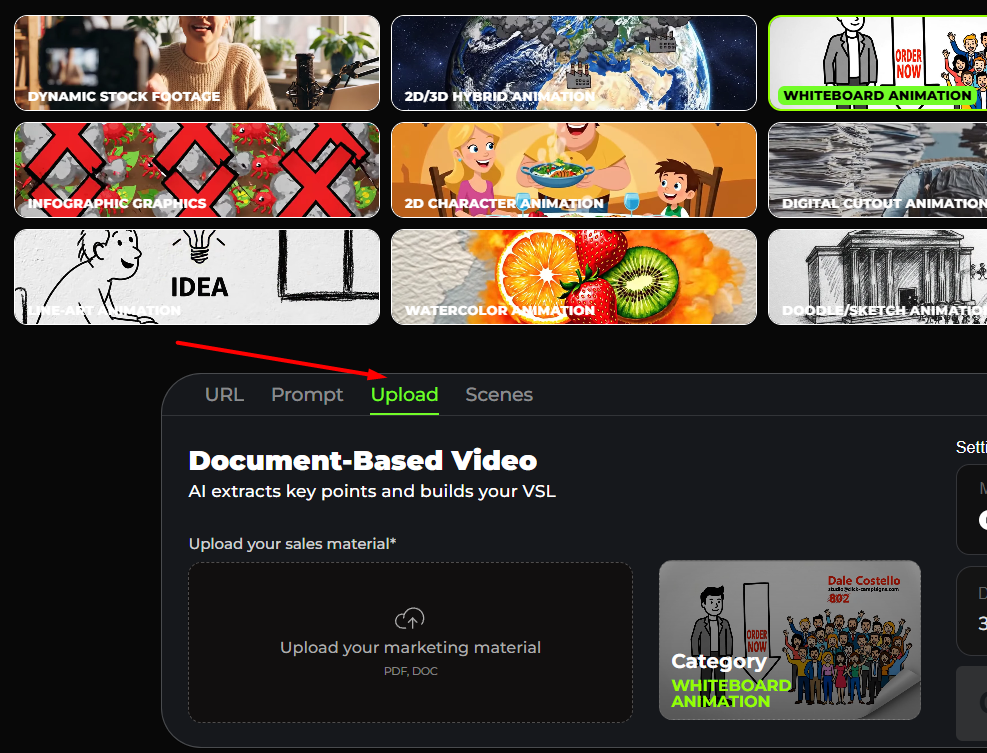
2. Click Upload
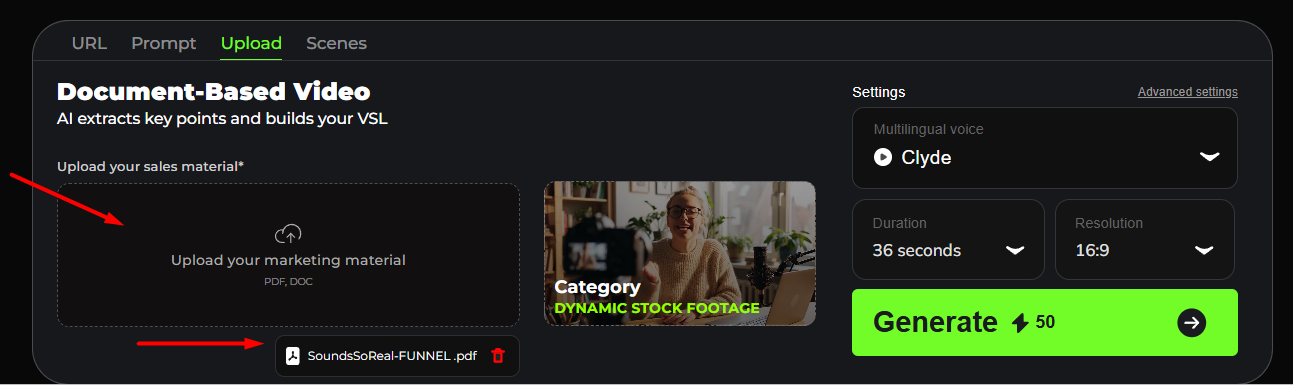
3. Upload Your Marketing Material
Under the Upload tab, there is a box labeled: “Upload your marketing material (PDF)
You can upload:
- Sales letters
- Marketing documents
- Product descriptions
- Scripts
-
Any content you want converted into a VSL
In the example, the file SoundsSoReal-FUNNEL.pdf has been successfully uploaded.
Once uploaded:
- The AI extracts the key points
- Writes the script
-
Builds your video based on the document
4. Category Preview
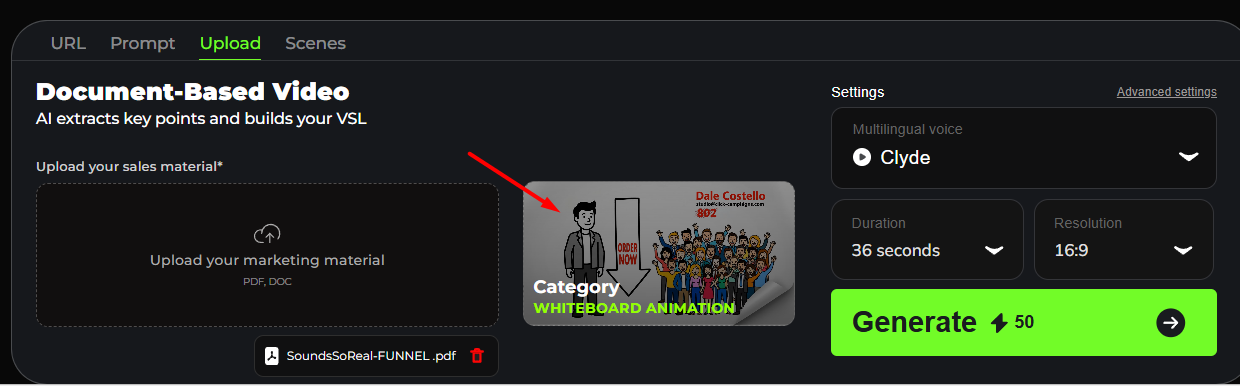
The preview box labeled Category shows the selected style again — in this case: WHITEBOARD ANIMATION
This confirms the look and feel of your video.
5. Settings
You can customize:
- Multilingual Voice (e.g., Clyde)
- Duration (e.g., 36 seconds)
- Resolution (e.g., 16:9)
These settings will apply to your final VSL.
6. Generate Button (bottom right)
When you click Generate, the system will:
- Read your uploaded document
- Extract key points
- Write a VSL script
- Render the video using the selected animation style
-
Apply your chosen voice, duration, and resolution
After the generation finishes, you can view and download your VSL.