.PNG)
How to Create a VSL Using a Prompt
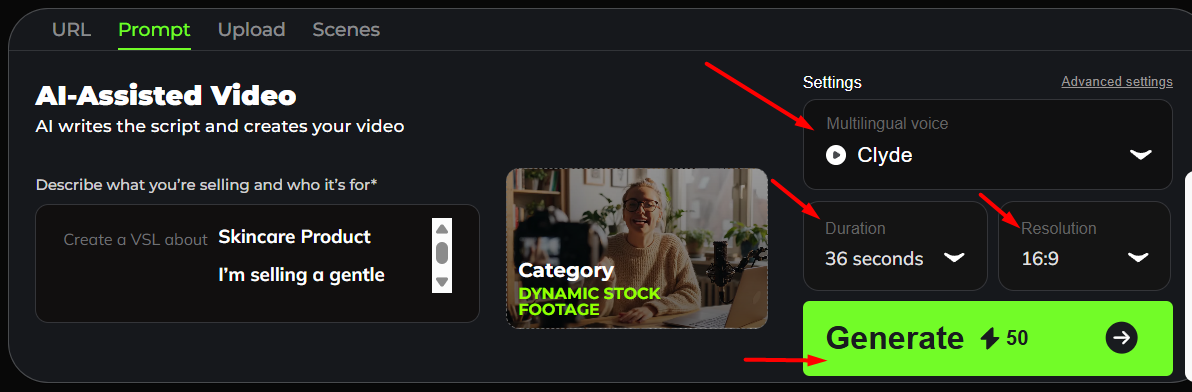
In this section, you are using the Prompt tab to create a VLS video.
Unlike the URL method (where the AI pulls content from a webpage), this mode asks you to describe your product or service, and the AI will:
- Write the script for you
- Generate the VSL automatically
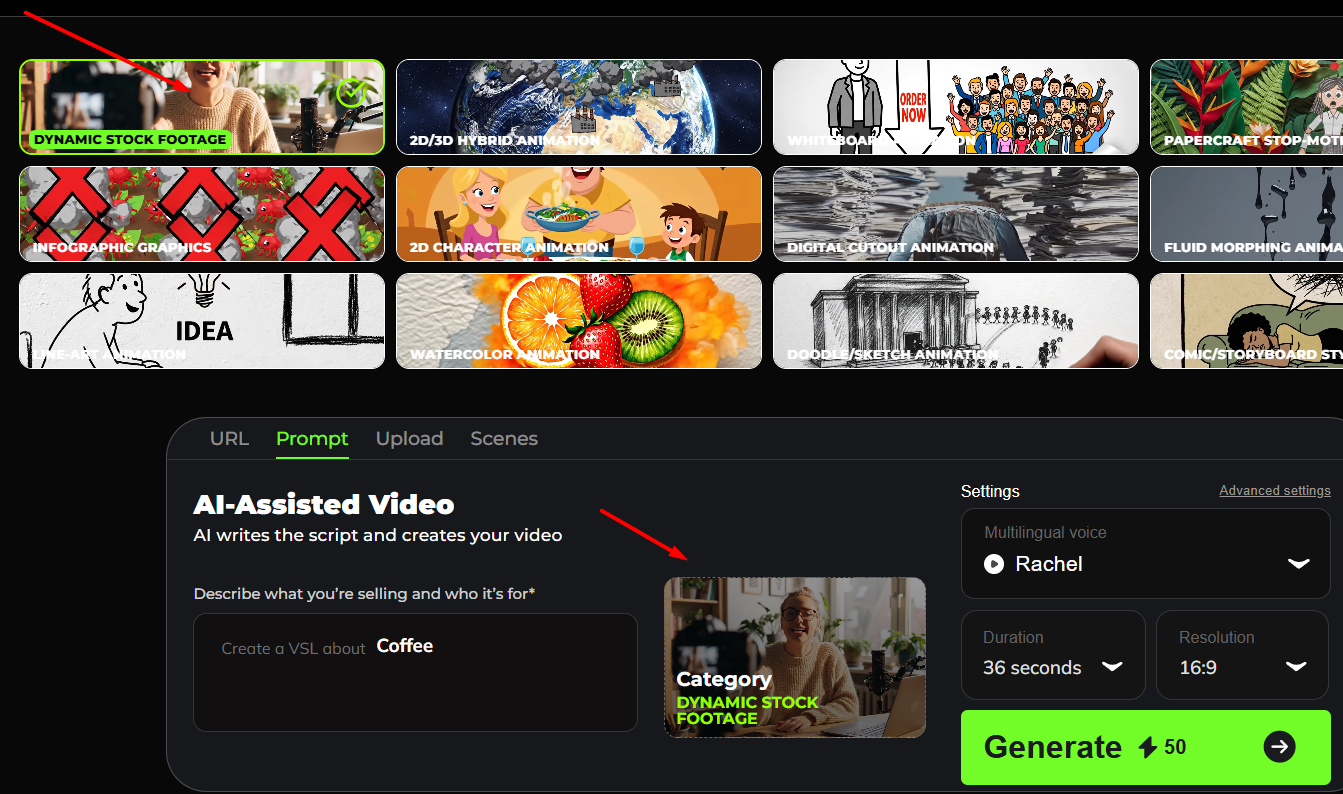
1. Selected Video Style
At the top, the highlighted box (Dynamic Stock Footage) shows the video style you have chosen.
This is the style your final VSL will use.
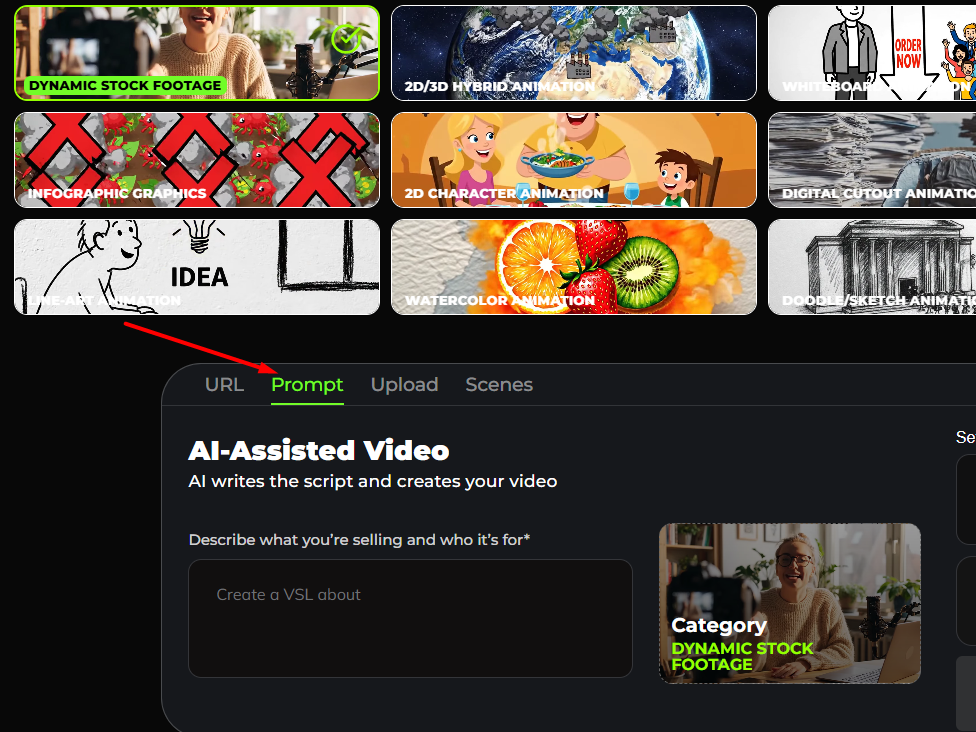
2. Click Prompt
3. Prompt Section
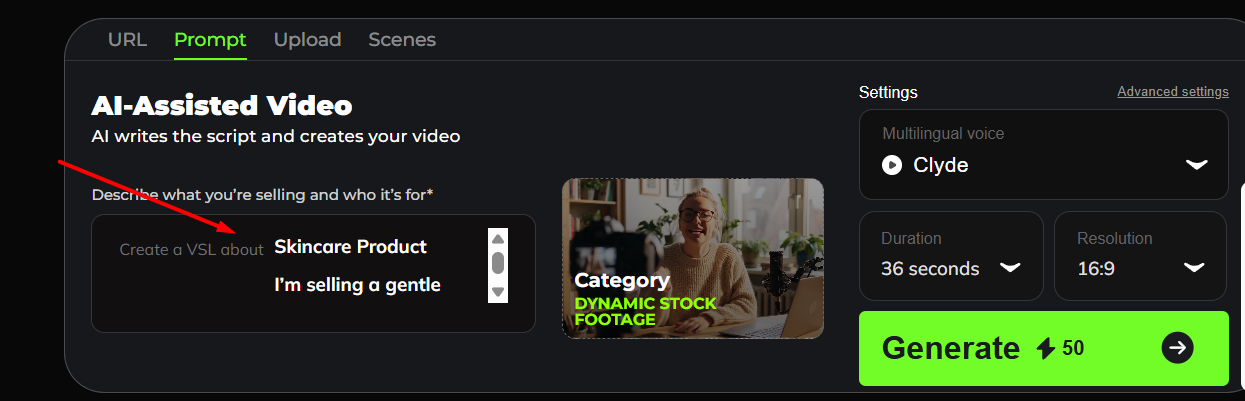
The text box labeled “Create a VSL about…” is where you tell the AI what your video should be about.
In the example, the prompt says: Skincare Product
Using this prompt, the AI will automatically write a full script for a Skincare-product related VSL.
3. Category Preview
The small preview image under “Category” confirms the video style currently selected (Dynamic Stock Footage).
4. Settings
You can customize:
- Voice (e.g., Rachel)
- Video duration
-
Resolution
5. Generate Button
When you click Generate, the system will:
- Use your prompt
- Write the script
- Produce a full VSL
- Render it using your chosen video style + selected voice