.PNG)
Creating Videos with SORA 2 model: A Step-by-Step Guide
Sora is an advanced text-to-video generative model developed by OpenAI. It can create highly realistic, high-resolution videos—up to around a minute long—directly from written prompts.
Follow these steps to create a SORA 2 video using the Synthesys UGC platform:
- Log in to Synthesys
- Click New Project and Select the SORA 2 model
Or click SORA 2 directly from the Home Page
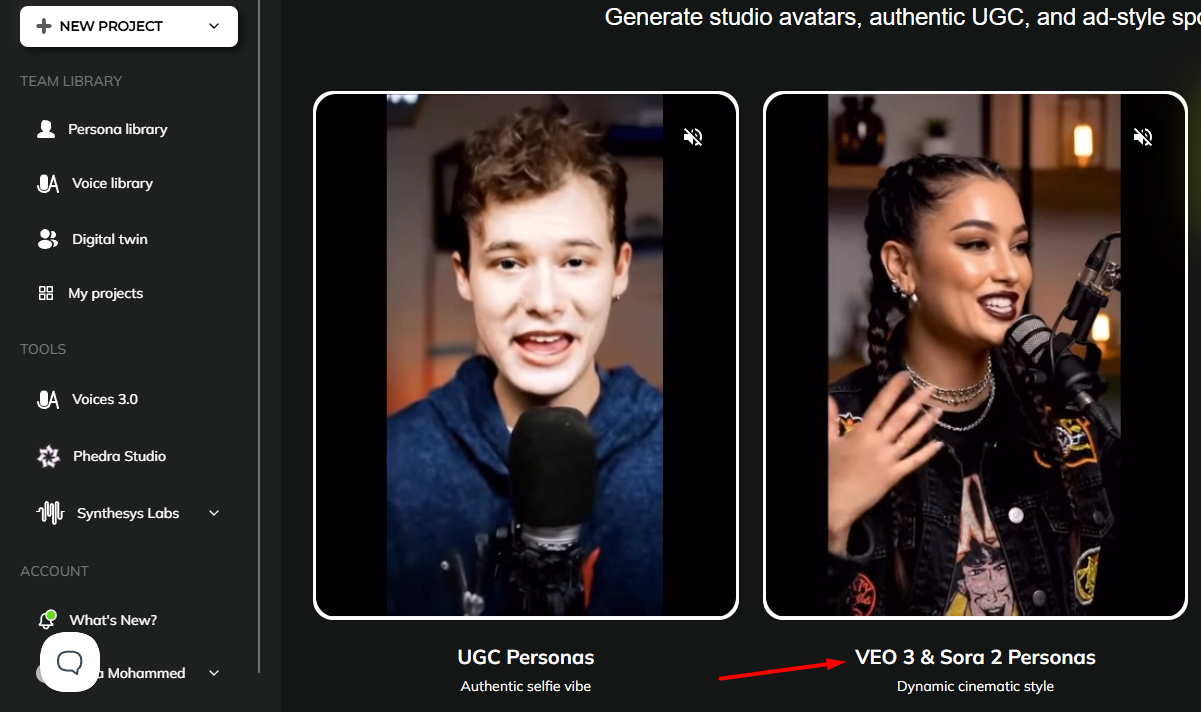
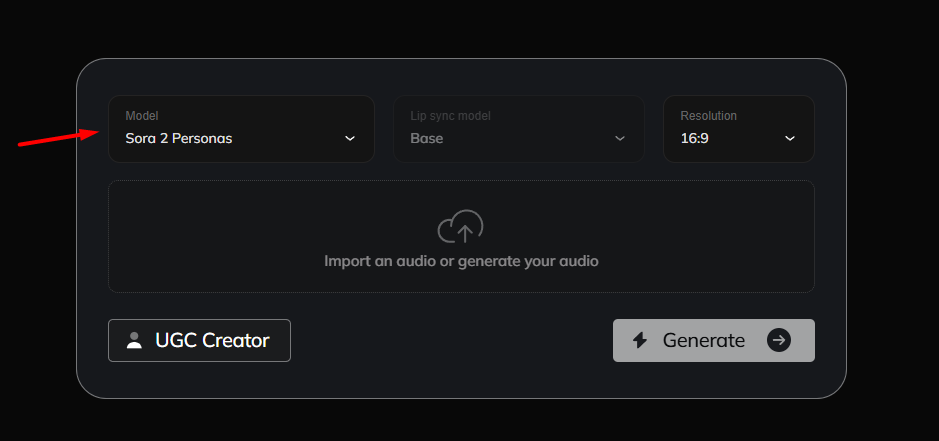
- Select Sora 2 Personas from the list of models.
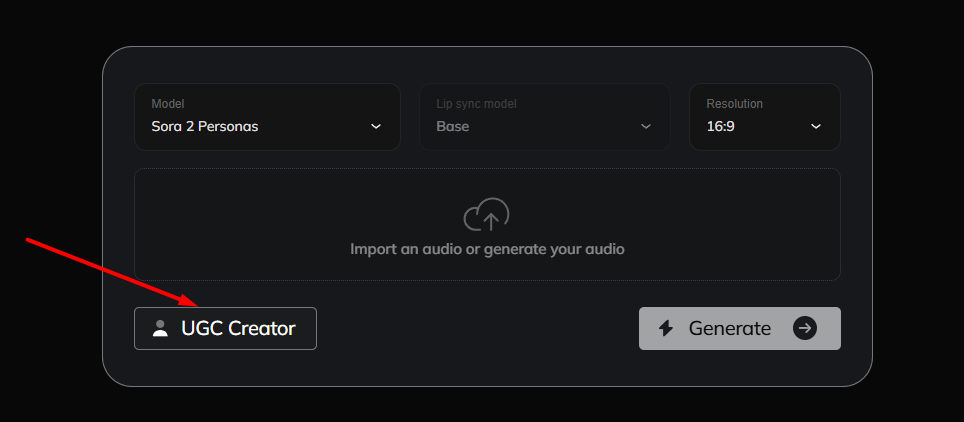
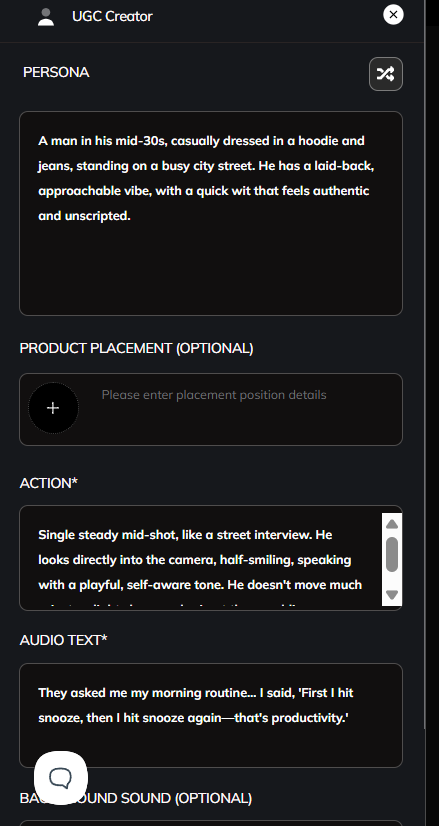
- Click UGC Creator and add Your Input
PERSONA: You can create a new persona, upload your own persona or re-use existing personas.
Here, let’s create a new persona.
- You’ll need to enter a character description to help the system generate a persona that fits your vision. This can include details like appearance, style, tone, age, and any specific traits you want the character to portray.
Example: A man in his mid-30s, casually dressed in a hoodie and jeans, standing on a busy city street. He has a laid-back, approachable vibe, with a quick wit that feels authentic and unscripted.
PRODUCT PLACEMENT (OPTIONAL) - This is a marketing strategy where you can feature brand’s product within content.
ACTION: is a specific type of instruction you give the AI to define what the character or scene should be doing in the video. It focuses on the movement, behavior, or interaction taking place — like gestures, expressions, or physical activity — and helps guide the video generation engine to produce realistic, dynamic motion.
Example: Single steady mid-shot, like a street interview. He looks directly into the camera, half-smiling, speaking with a playful, self-aware tone. He doesn't move much—just a slight shrug and grin at the punchline.
AUDIO TEXT: is the spoken script or dialogue you want your AI-generated character (persona) to say in the video.This prompt generates the voiceover or speech, which is automatically synced with the character’s lip movements and facial expressions using VEO3's advanced voice-to-animation system.
Example: They asked me my morning routine… I said, 'First I hit snooze, then I hit snooze again—that's productivity.'
BACKGROUND SOUND: lets you add ambient audio or sound effects to your AI-generated video — such as music, environmental sounds, or subtle effects — to make the scene feel more realistic and immersive. It enhances the atmosphere of the video and supports the story or action taking place.
Example: Natural street ambience: light traffic, footsteps, faint chatter in the background.
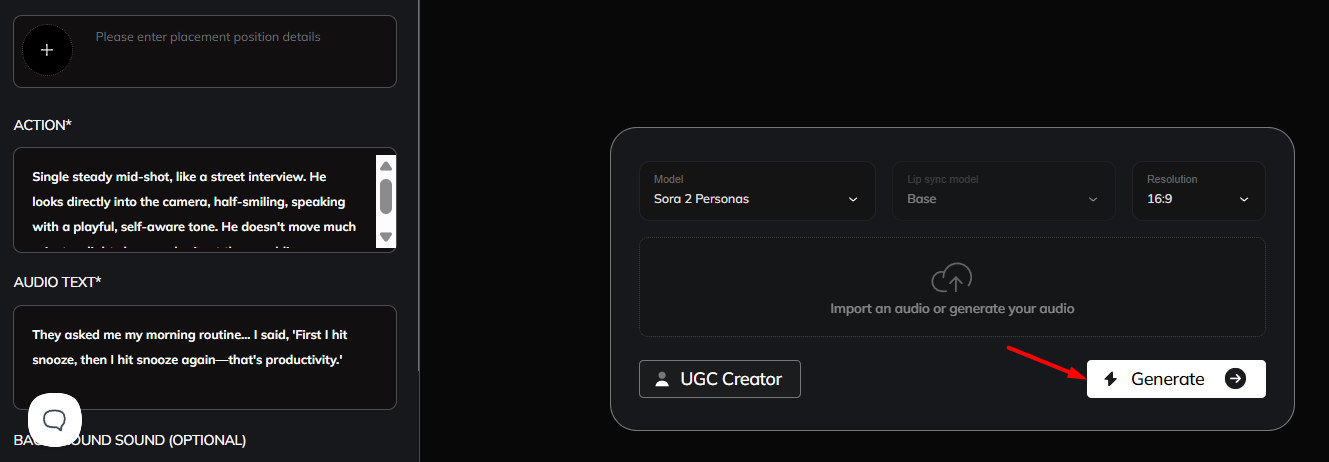
- Once done with your Input, click Generate button.
Note: SORA 2 model does not have Preview feature.
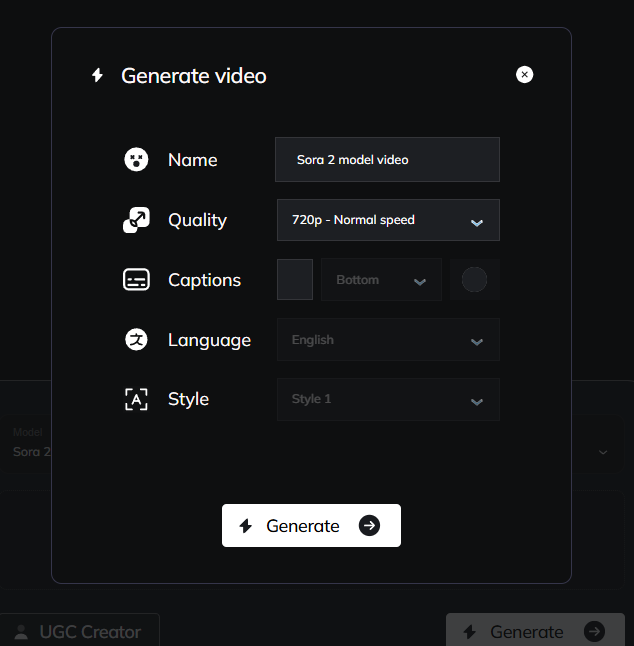
- Add your video name, caption, language and generate.