.PNG)
How to create a UGC video?
🎥 How to Create UGC Videos with Synthesys AI Studio
- Click New Project and Select UGC Personas OR
- Click the UGC Personas from the Home Page
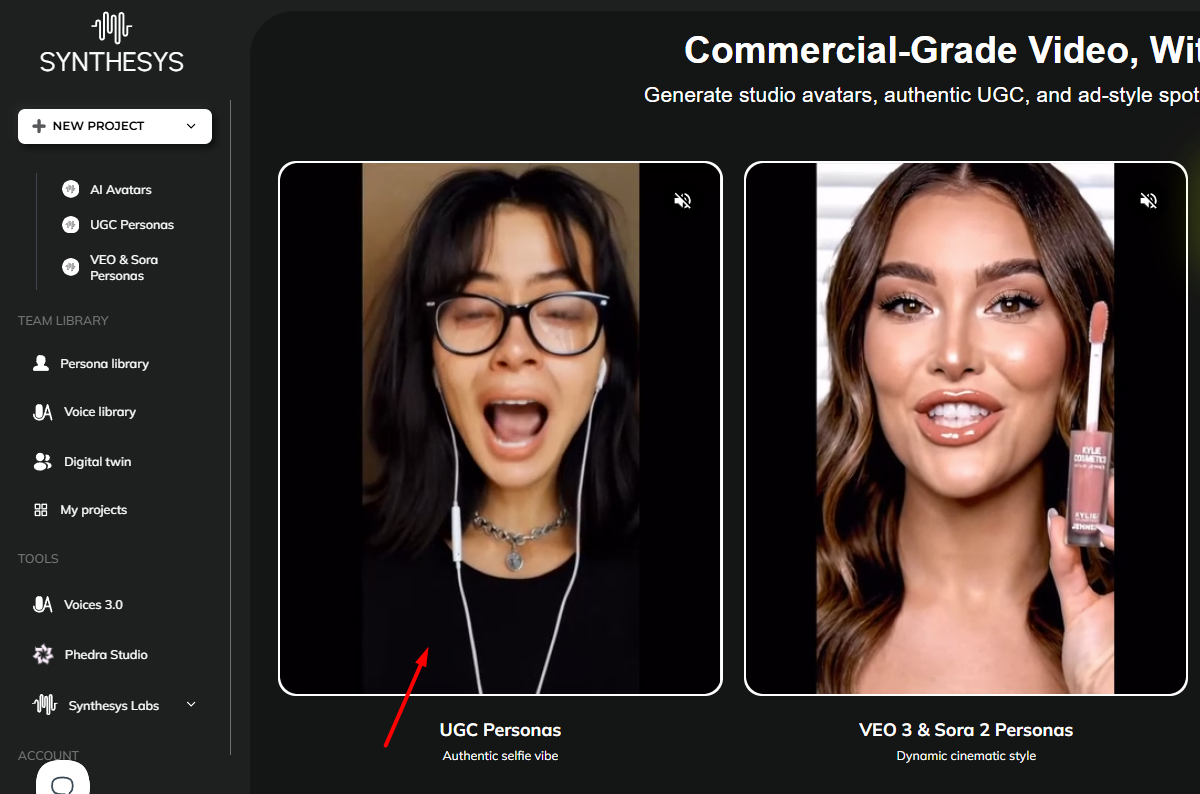
- Select Synthesys Still Personas from the list of the models.
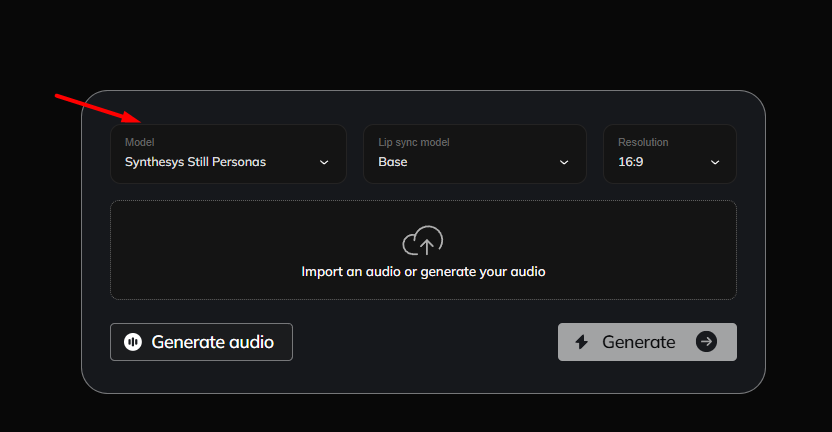
- Next, you'll create your audio, and you have two options to choose from:
- Upload your own audio – The file must be in MP3 format and no longer than 30 seconds.
- Generate your audio – Create a new audio using the platform’s built-in voice generation tools.
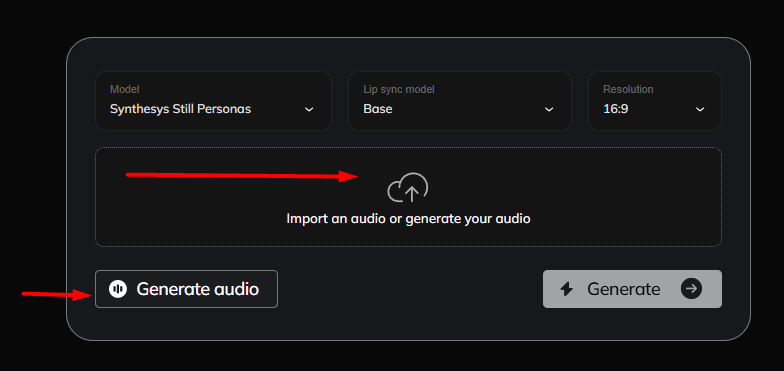
You can upload your own audio.
It should be an mp3 file with a maximum duration of 30 seconds.
- Click on import an audio
- Upload your audio
- You can preview the audio by clicking on the play button

- Preview the sample audio by clicking on the play button.
Generate your audio.
- Click the Generate audio button
- Select your Voice actor
- Add your Script
- Click Preview to process the script

- Select Appearance – This will be the actor featured in the UGC video you are creating.
- Click Appearance button

- Here, you’ll need to choose your avatar’s gender, provide a description of how the avatar should appear, and enter a background description that sets the scene for your avatar.

Example for Character Description
A woman with long hair wearing a business attire.
A woman with short hair wearing a red bikini.
Examples for Background description
An office environment
A corporate setting
A beach
Outer Space
Sample Output

- Optional - Setup Product placement
- Go to the UGC section.
- Select your audio or add your own script.
- Preview the audio to ensure it’s correct.
-
Click on Appearance.
Enter a description for your persona/avatar.
- In the Product Placement section, upload the product image you’d like to include in your video.
Supported file formats: JPG, PNG, or WEBP.
-
Add details for the position of the product.
For example: The product should be in both hands or in hand.
- Click Preview persona
- Click Preview Persona to preview the persona/actor.

- Once done with the audio selection and appearance, click the Generate button to proceed.

- Enter a name for your video and choose the desired resolution. You can also select the language, enable captions by checking the caption box, and customize the caption settings — including position and style — in this section.

- Click the Generate button to create your video.
